

Content
Sections
Includes:
Template 3: Rows of Logistics →
Template 3B: Rows of Logistics with Banner →
Template 4: Bio with Arch Image →
Template 4H: Header above Bio with Arch Image →
Template 5: Accent Text, Standalone with Button →
Template 6: Accent Text with Half Screen Image →
Template 7: Accent Text with Inset Image →
Template 3Rows of Logistics
For Enrollment: Pair with Template 15 or Template 16
-
Logistics and cost/enrollment information for offerings
-
This section is designed to make important information easy to find and digest within a long offering page.
The two column layout lets the eye easily scan the category/subject of each row. This helps the information both stand out — and be easy to read and internalize.
-
Watch the video tutorial “9 - Editing Logistics Sections” for a walkthrough of how to edit this section, and to add or delete rows.
-
Text styles are controlled by the font weights and the use of Paragraph 1 and Paragraph 2
Left Column:
Use Paragraph 2, Bold Italic to access the all caps font
Right Column:
Use Paragraph 1 to access the price font
Use Paragraph 2 for the normal paragraph style. Use the Regular, Bold, and Italic weights as desired
Use Paragraph 2 Bold Italic to access the all caps font
-
Where to Find It
Hover over section → Click on “Edit Section” → “Colors” Tab
Select Color Theme
What Color to Use
Use the main offering color theme for this section.
For example, the main color is blue for Reviving Our Roots. So on the course page, use the blue background.
-
Headline (h2 or h4)
Button
Accordion Block
Squarespace Form & Flodesk Form — See separate “Form Sections” page for how-tos
Upcoming Cohort Details
Our Next Cohort
Program Dates
January 28 – March 18, 2027
Meeting Times
Every Tuesday
from 12 – 2pm ET / 3 – 5pm PT
-
Date List
Date List
Date List
Date List
Date List
Date List
Investment and Enrollment
6-month membership
(10% discount)
$2,400
Payment Plan
$400/month for 6 months
12 month mentorship
(15% discount)
$4,080
Payment Plan
$340/month for 12 months
1:1 Consultation
$222
60 minute session
Virtual or in-person
How to Enroll
Book a free 30 minute Discovery Call with Sepideh
Template 3-BRows of Logistics with Banner
Adds banner image to “Rows of Logistics” Section Template
For Enrollment: Pair with Template 15 or Template 16
-
This section functions exactly the same as the above section, but adds the banner image.
-
Change Image
Double click on the image to open the editing menu. Click “Add an Image” or “Replace” to set a new image.
Image Size & Crop
Banner Images don’t look cropped in “Edit” mode, but display differently in “Preview” mode and on the public version of the webpage.
Banner Images automatically crop to different sizes based on the screen size. These crops are controlled via code. On large browser windows, it will show up like a horizontal banner image. On smaller screens, it crops to 5:4 — still horizontal but taller than the banner style.
Refine the position of the image in the frame via the “focal point”, which is the outlined circle on each image. The platform will try to keep this focal point in the center of the frame.
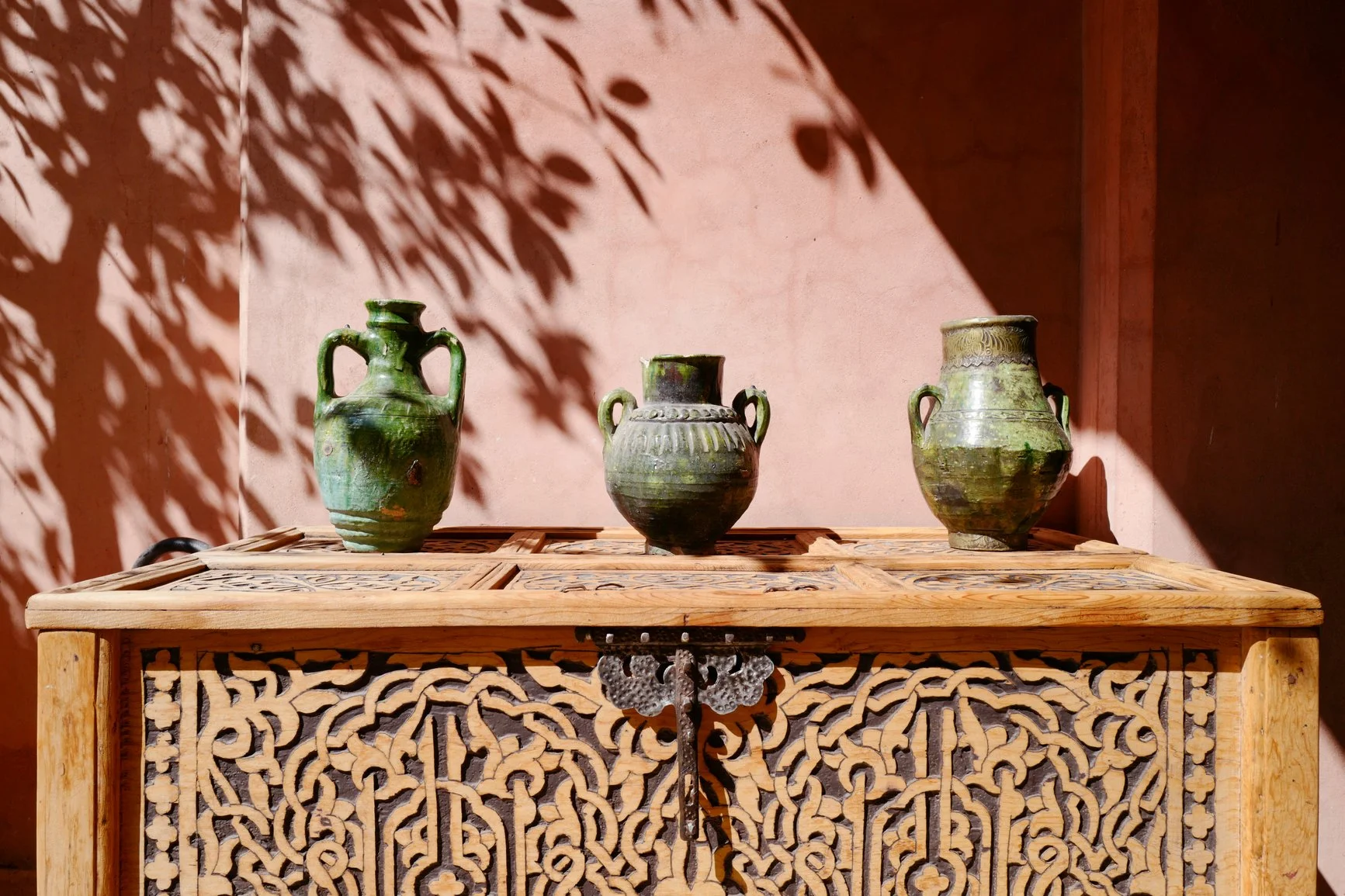
Upcoming Cohort Details
Our Next Cohort
Program Dates
January 28 – March 18, 2027
Meeting Times
Every Tuesday
from 12 – 2pm ET / 3 – 5pm PT
-
Date List
Date List
Date List
Date List
Date List
Date List
Template 4Bio with Arch Image
For featuring facilitators on offering pages
-
An image paired with long text with or without a button
-
Where to Find it
This section uses the “Image Card” block. Double click on the image to open the Edit Menu.
Change Image
Click “Add an Image” or “Replace” to set a new image.
Image Size: 4:3
This section uses vertical images with a 4:3 proportion.
Crop Image
Double click on the image to open the Edit menu.
Click on “Edit”
In the top right corner, you’ll see three icons. Click on the one that looks like a box. This is the symbol for “Crop.”
Select “4:3” and adjust the image in the frame as desired.
Click “Save”
Image Crop
Refine the position of the image in the frame via the “focal point”, which is the outlined circle on each image. The platform will try to keep this focal point in the center of the frame.
-
Headline = h2 Bold
Instagram handle link = Paragraph 2 Italic
Paragraph = Paragraph 2
All Caps accent style = Bold Italic — Use for the first few words of the first sentence
-
Button = Secondary Button style
For guest teachers, under “Edit” toggle on “Open Link in New Tab”
This section uses a separate button, not the Link available inside of the Image Card block.
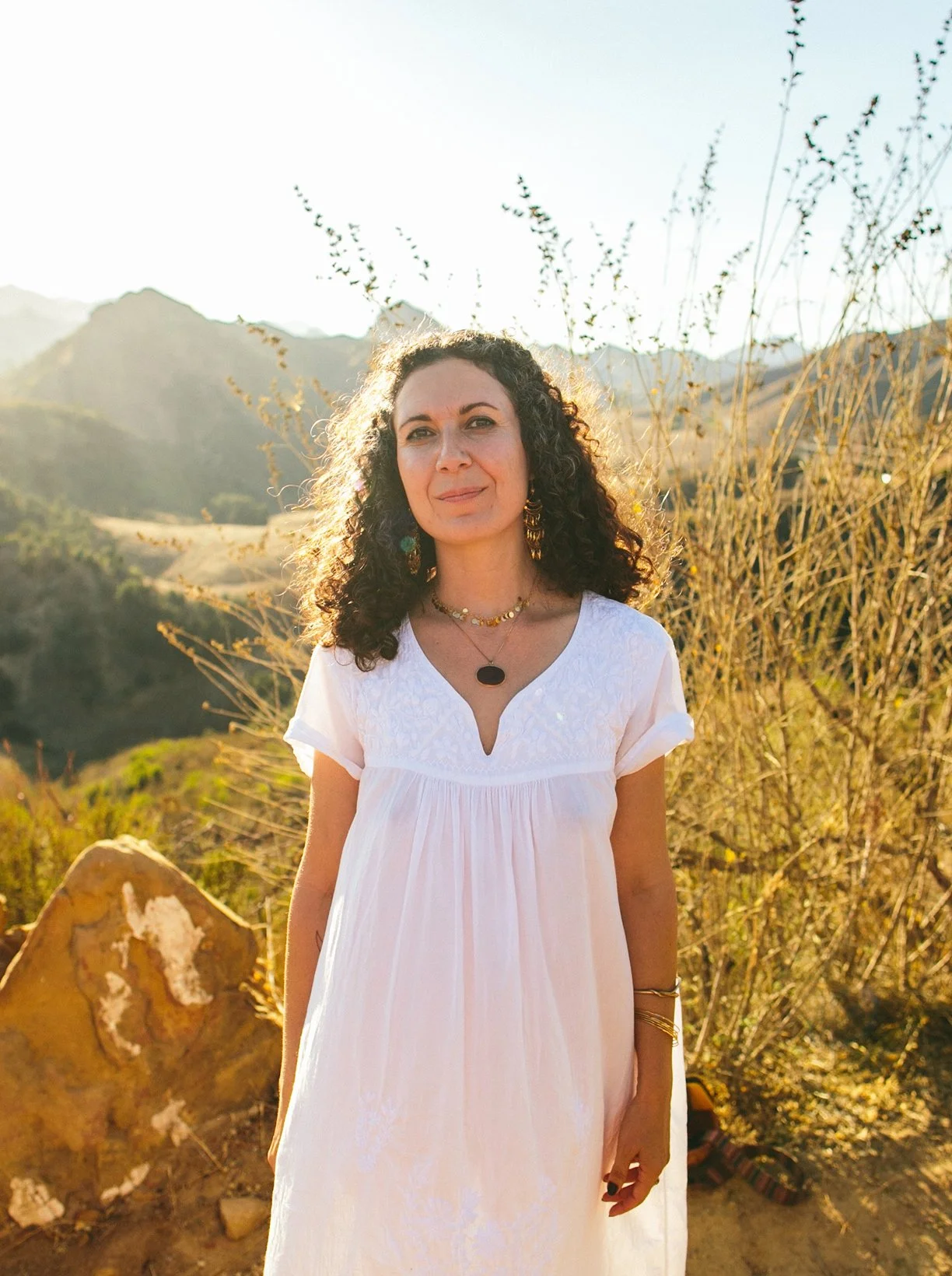
Sepideh
Hakimzadeh
Sepideh is a visionary, holds space that facilitates healing, and a mother. Her work meets at the intersection of animism, liberation, and love.
She weaves the threads of devotion of the land, body, and ancient wisdom in her 1:1 and group work. She is a devotee of the Great Mother, in service of liberating the heart and womb and our connection to the Earth. She believes deeply in the possibility of creating a new paradigm that brings back a long lost balance to the Earth and all the beings seen and unseen.
Sepideh is a trained psychotherapist in archetypal and relational psychology. She has a background in yoga, dance, bodywork, somatics, and animism. She currently lives with her son, husband, mother, and cat in the sacred lands of the Munsee Lenape and Schaghticoke also known as Rhinebeck NY, in the Hudson Valley.

Cristy Benitez Allen LMFT
Cristy is a queer Chicana (detribalized Caxcan/Iberian mestiza) mother, storyteller and psychotherapist focused on decolonial somatic depth psychology with fourteen years in clinical practice based in California. She is a ritualist and initiated medicine keeper, trained as a priestess in sacred arts and a certified ancestral lineage healing practitioner.
With vows to live the repair, she leads circles to resolve intergenerational trauma and root in animist ethics with kindness, beauty, kinship and wisdom.
Template 4-HHeader Above Bio with Arch Image
Pair with Template 4
-
Use this section before a Template 4 section to add an Headline, like “Meet Your Guest Facilitators” before Facilitator Bios
-
Headline = h4 Italic
Special swash characters = Bold Italic
-
Where to Find It
Hover over section → Click on “Edit Section” → “Colors” Tab
Select Color Theme
What Color to Use
Use the same color as the Facilitator Bio sections that follow. Usually this is Light Purple.
Meet Your Guest Teachers
Template 5Accent Text, Standalone with Button
Make a strong impression that inspires purchase or enrollment
-
Extra large special headline to highlight a special sentence or phrase
Headline text length will impact the legibility and success of this section. It’s best to keep this to a shorter phrase or sentence so it’s easy to read.
-
Use to highlight a special sentence about your offering
Use with or without paragraph text and a button
Used at the beginning and end of an offering pages as a way to make a strong impact and inspire people to take the next step
-
Watch the video tutorial “2 - XL Headline Style Tips”
-
Uses Heading 2
Access Headline Font Styles
Use Bold weight for all caps
Use Bold Italic on individual letters to access a swash accent, like on an “R”
Use Italic for the small italic style. This style works well for short prepositions or supporting words
Paragraph Text Options
Paragraph 1, Centered
Fancier Italic font style
Text alignment = center
For short supporting copy. Because this font is an accent style, keep this between 1-3 lines of text for legibility.
Paragraph 2, Left Aligned
Normal paragraph font style
Text alignment = left
All Caps accent: Use Bold Italic for the first few words of the first sentence
For longer supporting copy that’s 2+ sentences long. Use line breaks between sentences to make it easy to read.
-
Use special characters to help finesse the way your text breaks across multiple lines. Using one of the methods below can help solve some common headline problems.
Copy special characters from the links below and paste it between the words replacing the default space/hyphen.
Non-Breaking Space:
Use this to keep two words together instead of breaking across two lines. Good between two words in the middle of your headline or at the very end. Don’t use for long words or for more than 2, because it may make things look weird on mobile.
Non-Breaking Hyphen
Same as the non-breaking space, but with a hyphen. Use this for hyphenated words that you don’t want to split across a line break.
Soft Line Break (use w/ caution!)
When a non-breaking space won’t do the trick, use a “soft line break” (shift+return) instead of a “hard line break” (return).
Insert a soft line break by holding (shift+return) at the same time instead of (return) when making a new line.
This will drop the cursor down to a new line without making a full paragraph break.
Check Your Work:
Always check your work on smaller screens using the mobile preview to make sure your work looks good on mobile and tablet.
-
Button = Primary Button style
This should link to Enrollment/Purchase
-
Where to Find It
Hover over section → Click on “Edit Section” → “Colors” Tab
Select Color Theme
What Color to Use
Use the main offering color theme for this section.
For example, the main color is blue for Reviving Our Roots. So on the course page, use the blue background.
Your life’s
unfolding
is in devotion to
your Ancestors, the Beloved,
and the Earth.
For those who are in Devotion to the Sacred, connected to the Beloved, and embodied in the ancient wisdoms and medicine of the Earth, Great Mother, and your lineages.
Revive your roots and
Reclaim Your
Ancestral
Wisdom
Reviving Our Roots is an intentional space created for us to gather, learn, unlearn, and heal together.
We weave together the threads of our different ancestries and cultures in honor of the thousands of years that our borders were fluid and our lands welcomed a variety of cultures, trade, and ways of worship.
We invite you to step through this portal with us to revive your roots and reclaim your ancestral wisdom.
Template 6Accent Text with Half Screen Image
High impact statements that show people that they are already hungry for what you’re offering
-
1-2 powerful sentences paired with an evocative image
Headline text length will impact the legibility and success of this section. It’s best to keep this to a shorter phrase or sentence so it’s easy to read.
-
Use to break up the rhythm of a long offering page, or as transition between different parts of an offering page
Use evocative images alongside valuable insight
Use statements or questions that invite the reader to reflect on what they want or need and that ask them to consider how this offering could serve them
Use these to build connection with the reader, momentum in the page, and appetite for what you are offering
Use with or without paragraph text
-
Watch the video tutorial “2 - XL Headline Style Tips”
-
Where to Find it
This section uses the Background Image
Hover over section → Click on “Edit Section” → “Background” Tab
Change Image
Click “Add an Image” or “Replace” to set a new image.
Image Crop
Refine the position of the image in the frame via the “focal point”, which is the outlined circle on each image. The platform will try to keep this focal point in the center of the frame.
Test Focal Point on Mobile View
Setting this focal point is especially important for mobile views. Check your work on desktop and mobile views and make adjustments if you need to.
-
Uses Heading 2
Access Headline Font Styles
Use Bold weight for all caps
Use Bold Italic on individual letters to access a swash accent, like on an “R”
Use Italic for the small italic style. This style works well for short prepositions or supporting words
Paragraph 1, Centered
Text alignment = center
For short supporting copy. Because this font is an accent style, keep this between 1-3 lines of text for legibility.
-
Use special characters to help finesse the way your text breaks across multiple lines. Using one of the methods below can help solve some common headline problems.
Copy special characters from the links below and paste it between the words replacing the default space/hyphen.
Non-Breaking Space:
Use this to keep two words together instead of breaking across two lines. Good between two words in the middle of your headline or at the very end. Don’t use for long words or for more than 2, because it may make things look weird on mobile.
Non-Breaking Hyphen
Same as the non-breaking space, but with a hyphen. Use this for hyphenated words that you don’t want to split across a line break.
Soft Line Break (use w/ caution!)
When a non-breaking space won’t do the trick, use a “soft line break” (shift+return) instead of a “hard line break” (return).
Insert a soft line break by holding (shift+return) at the same time instead of (return) when making a new line.
This will drop the cursor down to a new line without making a full paragraph break.
Check Your Work:
Always check your work on smaller screens using the mobile preview to make sure your work looks good on mobile and tablet.
-
Where to Find It
Hover over section → Click on “Edit Section” → “Colors” Tab
Select Color Theme
What Color to Use
Use the main offering color theme or light purple for this section.
For example, the main color is blue for Reviving Our Roots. So on the course page, use the blue background.
This is Mentorship
for the leaders, visionaries,
oracles,
wisdom keepers, Priestesses, and medicine women
who are ready to deepen their commitment to their sacred purpose.

Do you feel the pull of something
stronger calling you forth?
The current of your blood and the pull of your DNA inviting you to kneel at the altar of your life?
Template 7Accent Text with Inset Image
A different layout offers a nice change in rhythm
-
Sharing an image with a short headline
Use with or without paragraph text
Text is left-aligned in this section
-
Use this to break up the rhythm of a long offering page. The layout of this section is different than most of the other sections on your offering pages, so this can offer a nice change of pace.
This to share photos of yourself on offering pages
-
Where to Find it
This section uses the “Image Card” block. Double click on the image to open the Edit Menu.
Change Image
Click “Add an Image” or “Replace” to set a new image.
Image Size: 4:3
This section uses vertical images with a 4:3 proportion.
Crop Image
Double click on the image to open the Edit menu.
Click on “Edit”
In the top right corner, you’ll see three icons. Click on the one that looks like a box. This is the symbol for “Crop.”
Select “4:3” and adjust the image in the frame as desired.
Click “Save”
Swap Image and Text Sides
Double click on the image to open the Edit Menu. On the “Design” Tab, choose between Image Left and Image Right.
-
Main Headline = h2, h3
All Caps = Bold
Alternate Headline = h4
Paragraph = Paragraph 1 or Paragraph 2
All Caps accent style = Bold Italic
Use for the first few words of the first sentence
-
Where to Find It
Hover over section → Click on “Edit Section” → “Colors” Tab
Select Color Theme
What Color to Use
Use the main offering color theme or light purple for this section.
For example, the main color is blue for Reviving Our Roots. So on the course page, use the blue background.
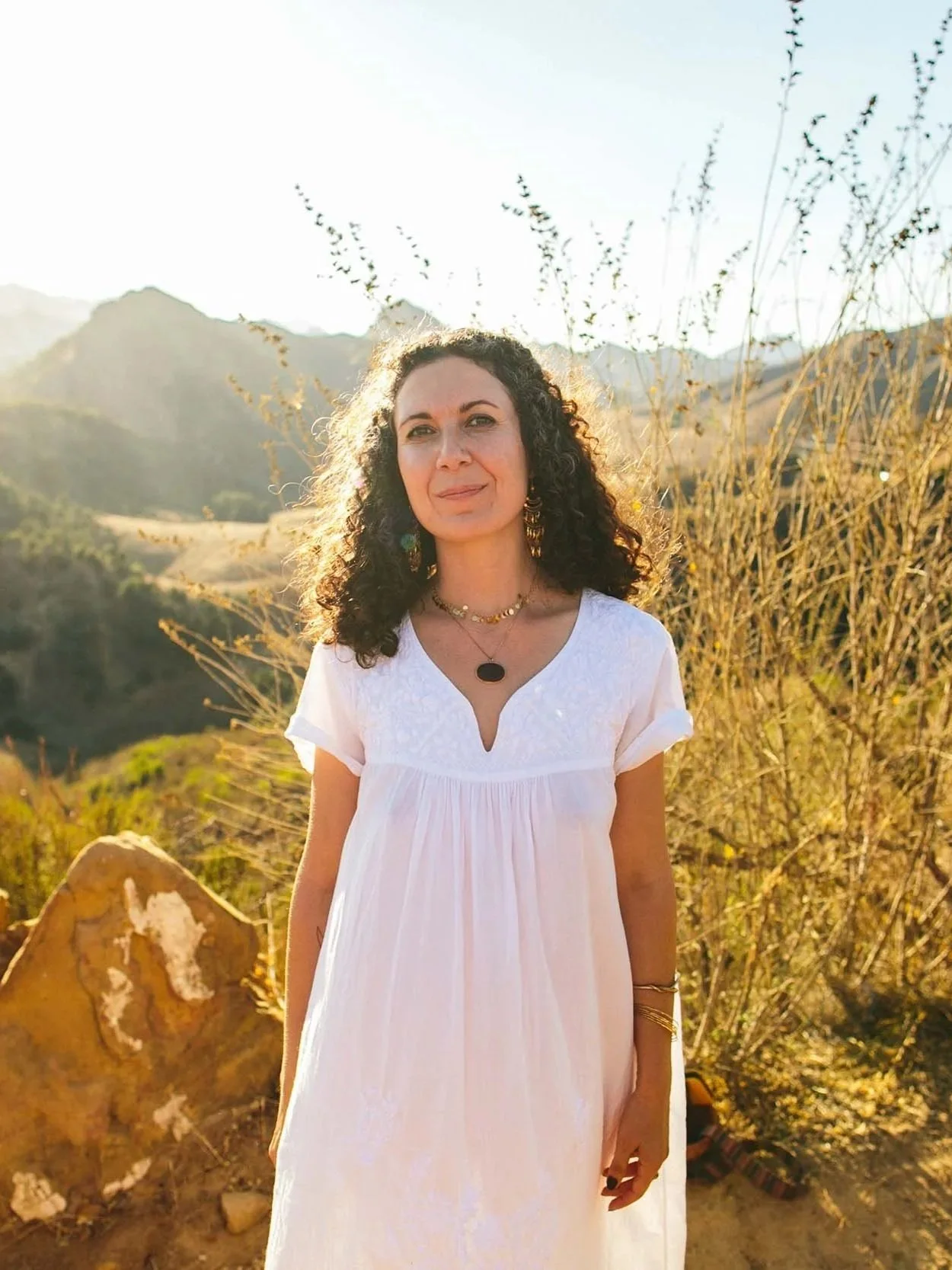
Humanity is at a crossroads and needs Visionary Leadership that is ready to guide and shape world‑building.
Hello Beloved.
I’m Sepideh.
It is an honor to hold and facilitate this sacred container. I do not take my work or my oath lightly. I weave lifetimes of experience and personal work into helping initiate your process.