

Accent Image
Sections
Includes:
Template 21: 3 Arch Images →
Template 22: 2 Arch Images with Text →
Template 23: Captioned Images, Carousel →
Template 24: Captioned Images, 2 Centered →
Template 25: Captioned Images, 2 Staggered →
Template 213 Arch Images
-
Adding decorative images to page
Only the middle image displays on smaller screens, like phones
Works well under “Template 5: Rows of Logistics” sections
-
Hover over section → Click on “Edit Content” → “Content” Tab
Under “Items” → Each image is an item. Click on each item to edit.
-
Where to Find it
Each image lives as an “Item” in the “Content” Tab. Click on each item to edit content.
Change Image
Click “Add an Image” or “Replace” to set a new image.
Image Size & Crop
This section automatically crops the image to the correct proportion.
Refine the position of the image in the frame via the “focal point”, which is the outlined circle on each image. The platform will try to keep this focal point in the center of the frame.
-
Where to Find It
Hover over section → Click on “Edit Section” → “Colors” Tab
Select Color Theme
-
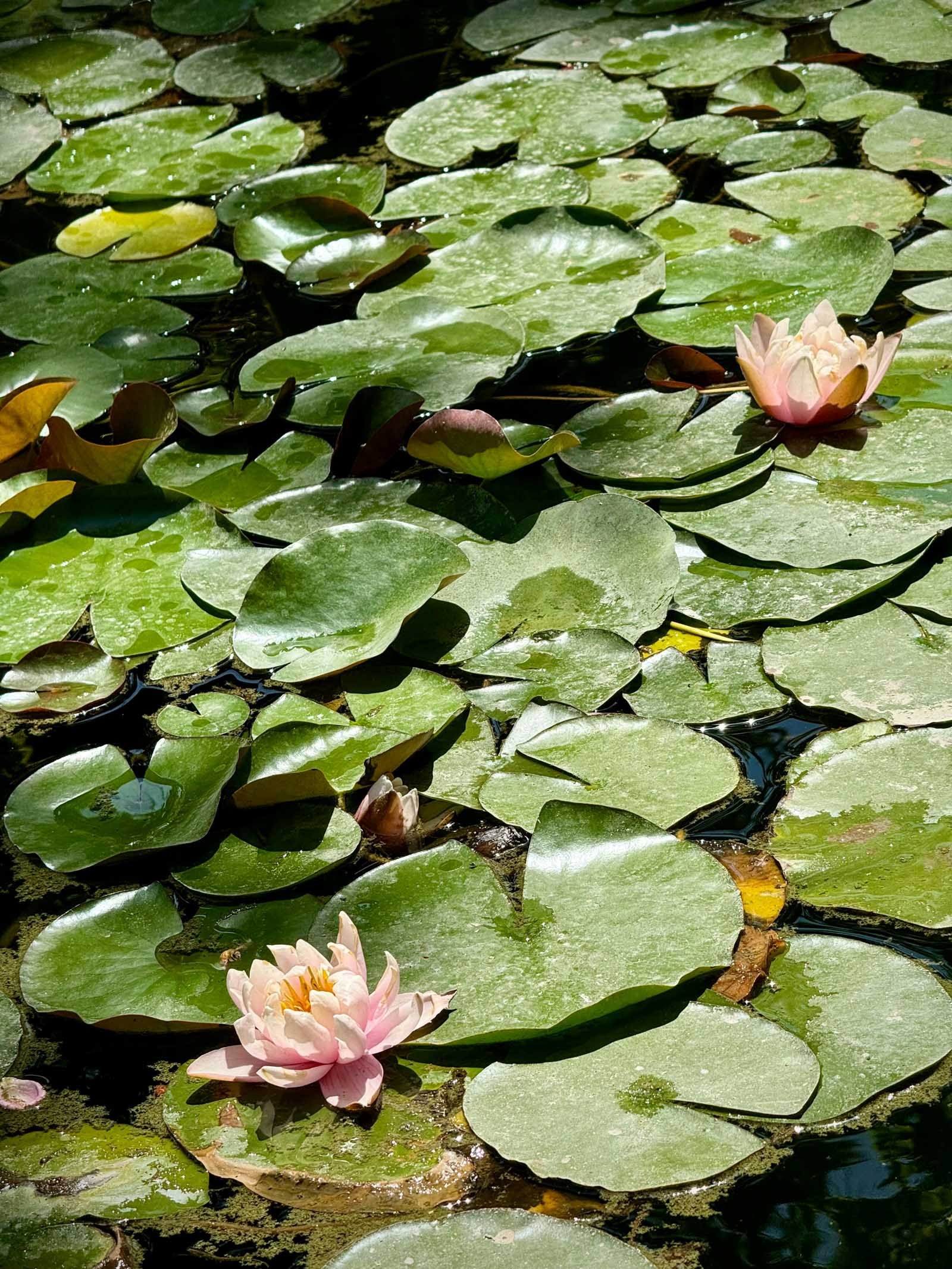
Image Only
-

Image Only
-
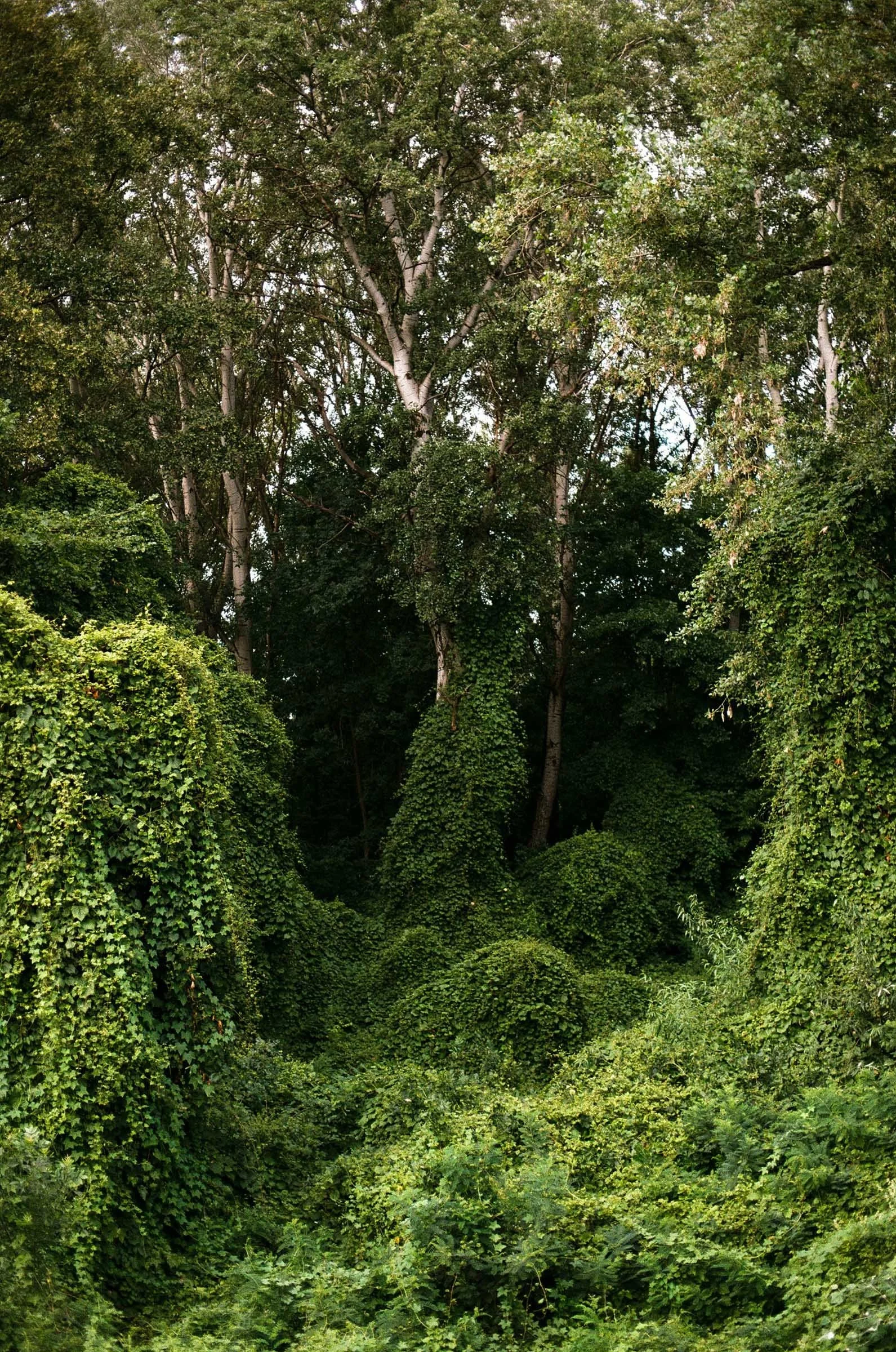
Image Only
Template 222 Arch Images with Text
-
Highlighting one important sentence and adding arch images
-
Hover over section → Click on “Edit Content” → “Content” Tab
Under “Items” → Each image is an item. Click on each item to edit.
-
Where to Find it
Each image lives as an “Item” in the “Content” Tab. Click on each item to edit content.
Change Image
Click “Add an Image” or “Replace” to set a new image.
Image Size & Crop
This section automatically crops the image to the correct proportion.
Refine the position of the image in the frame via the “focal point”, which is the outlined circle on each image. The platform will try to keep this focal point in the center of the frame.
-
Where to Find it
Each item lives as an “Item” in the “Content” Tab. Click on each item to edit content.
Item Description field
“Description” = text
Use bold weight for all caps
-
Where to Find It
Hover over section → Click on “Edit Section” → “Colors” Tab
Select Color Theme
-
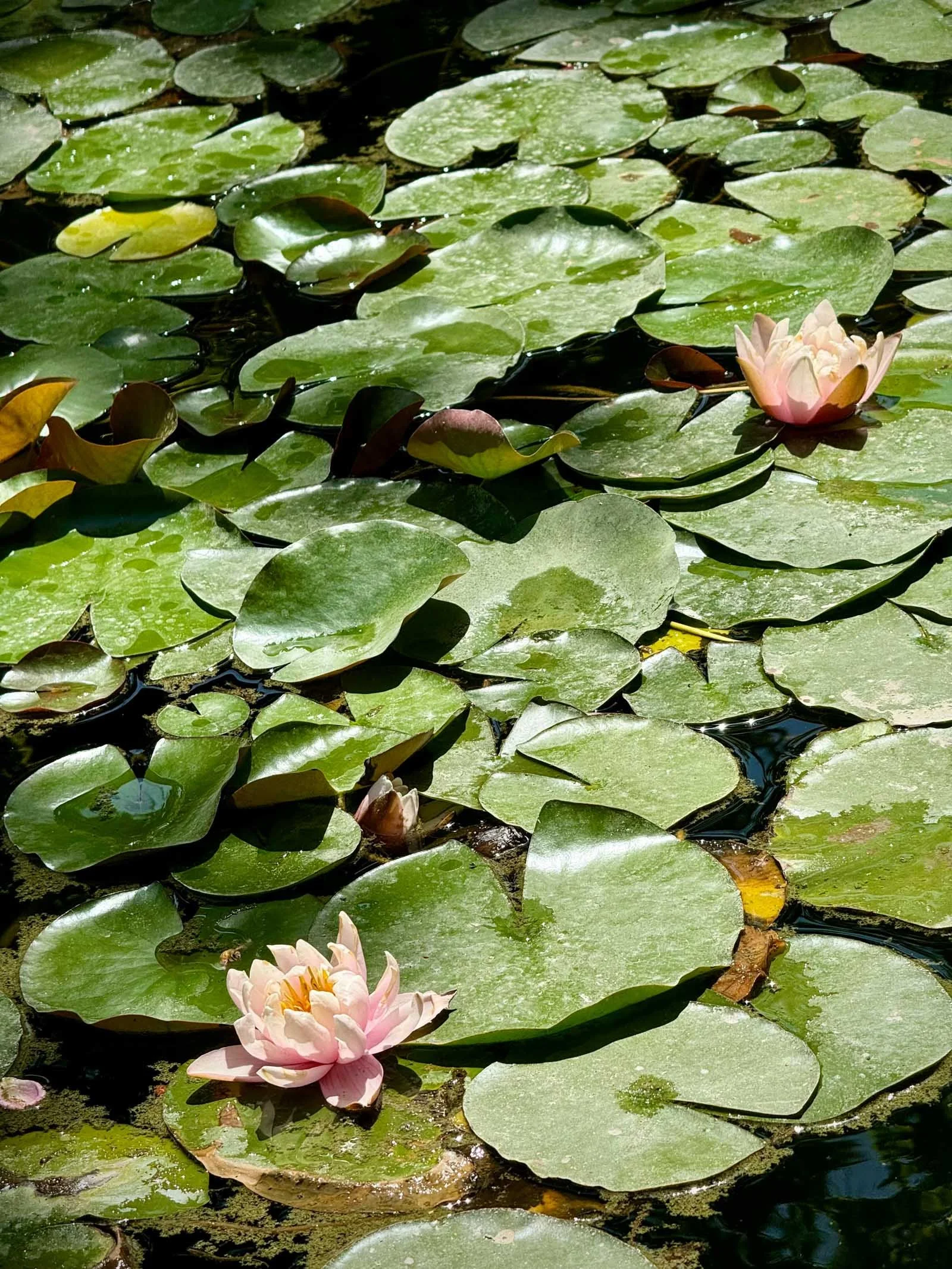
Image Only
-
Reviving Our Roots is a three-month journey where we will gather to learn, unlearn, and heal.
-
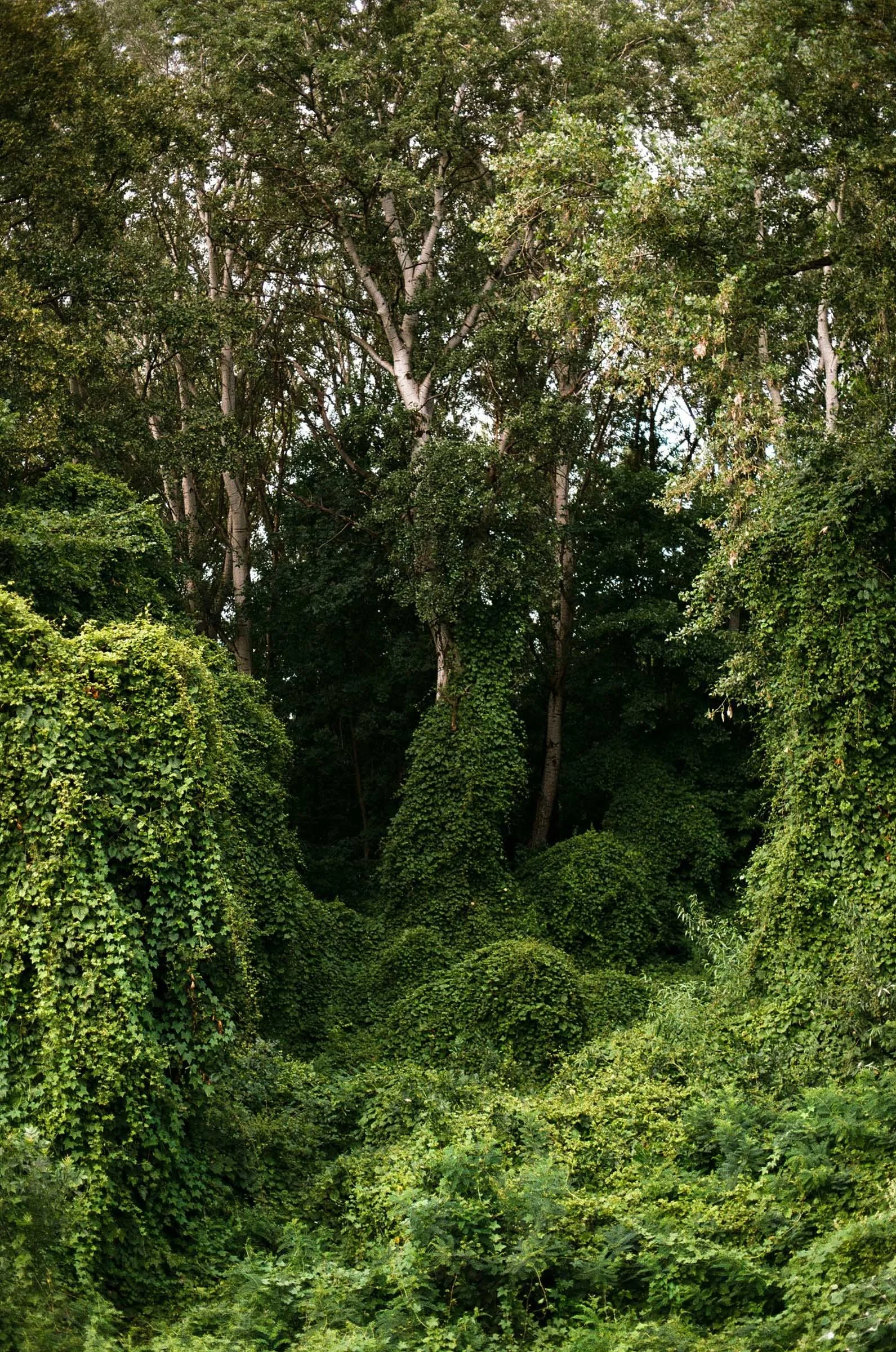
Image Only
Template 23Captioned Images, Carousel
-
Sharing more than 2 captioned images
Retreat destination gallery
-
Hover over section → Click on “Edit Content” → “Content” Tab
Under “Items” → Each image is an item. Click on each item to edit.
-
Where to Find it
Each image lives as an “Item” in the “Content” Tab. Click on each item to edit content.
Change Image
Click “Add an Image” or “Replace” to set a new image.
Item Description field
“Description” = caption
-
Where to Find It
Hover over section → Click on “Edit Section” → “Colors” Tab
Select Color Theme
-
Where to Find It
Under “Items” in the “Content” Tab
To Add
Beneath the list of Items, click “Add Item”
To Delete
Each item has a trash can on the right side. Click on the red trash icon to delete an item
-
![]()
A longer image caption that has a short description, caption details 12345
-
![]()
Image Caption, caption details 12345
-
![]() Description goes here
Description goes here -
![]() Description goes here
Description goes here
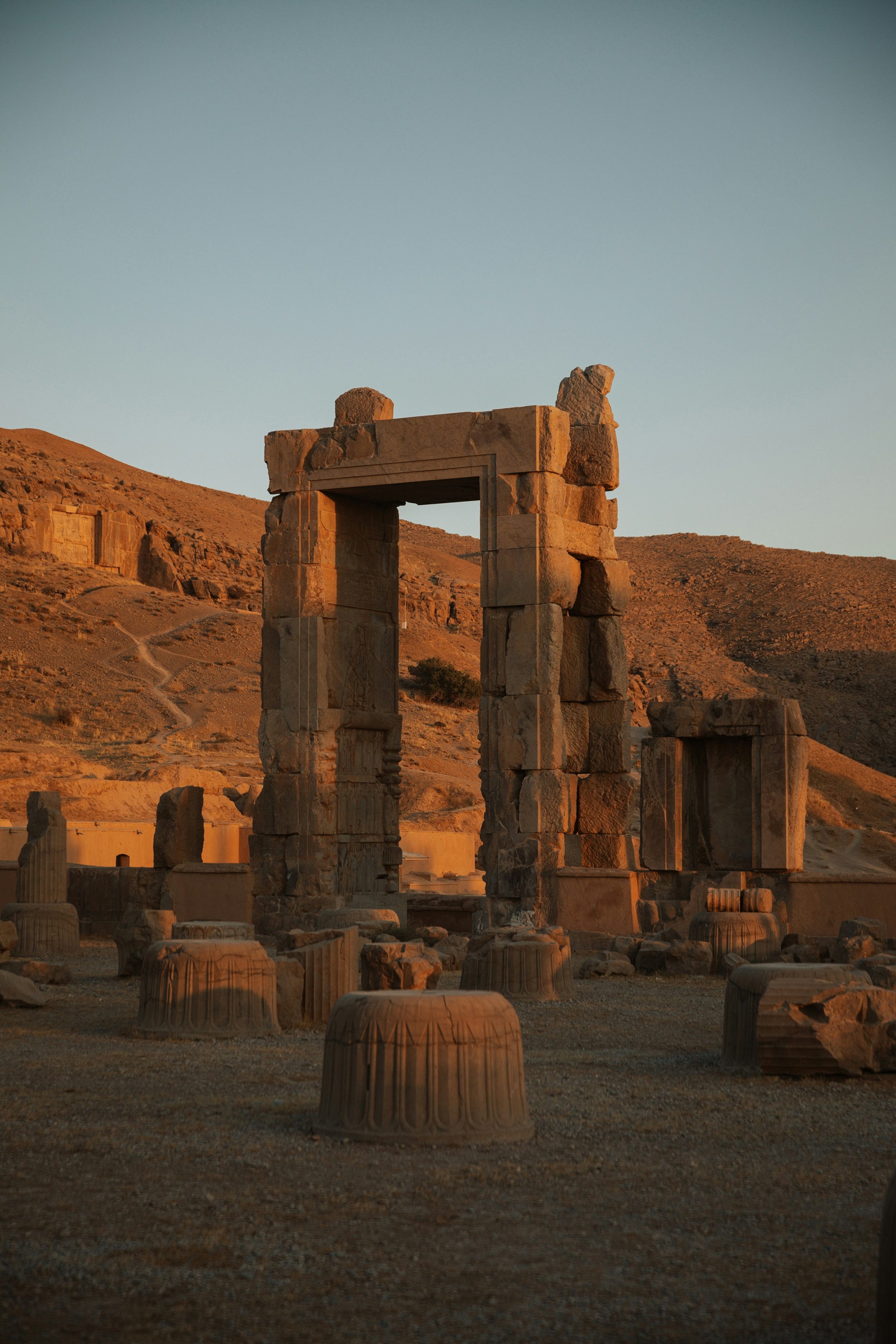
Template 24Captioned Images, 2 Centered
-
2 captioned images
-
Hover over section → Click on “Edit Content” → “Content” Tab
Under “Items” → Each image is an item. Click on each item to edit.
-
Where to Find it
Each image lives as an “Item” in the “Content” Tab. Click on each item to edit content.
Change Image
Click “Add an Image” or “Replace” to set a new image.
Item Description field
“Description” = caption
-
Where to Find It
Hover over section → Click on “Edit Section” → “Colors” Tab
Select Color Theme
-

A longer image caption that has a short description, caption details 12345
-

Image Caption, caption details 12345
Template 25Captioned Images, 2 Staggered
-
2 captioned images only
-
Hover over section → Click on “Edit Content” → “Content” Tab
Under “Items” → Each image is an item. Click on each item to edit.
-
Where to Find it
Each image lives as an “Item” in the “Content” Tab. Click on each item to edit content.
Change Image
Click “Add an Image” or “Replace” to set a new image.
Item Description field
“Description” = caption
-
Where to Find It
Hover over section → Click on “Edit Section” → “Colors” Tab
Select Color Theme
-
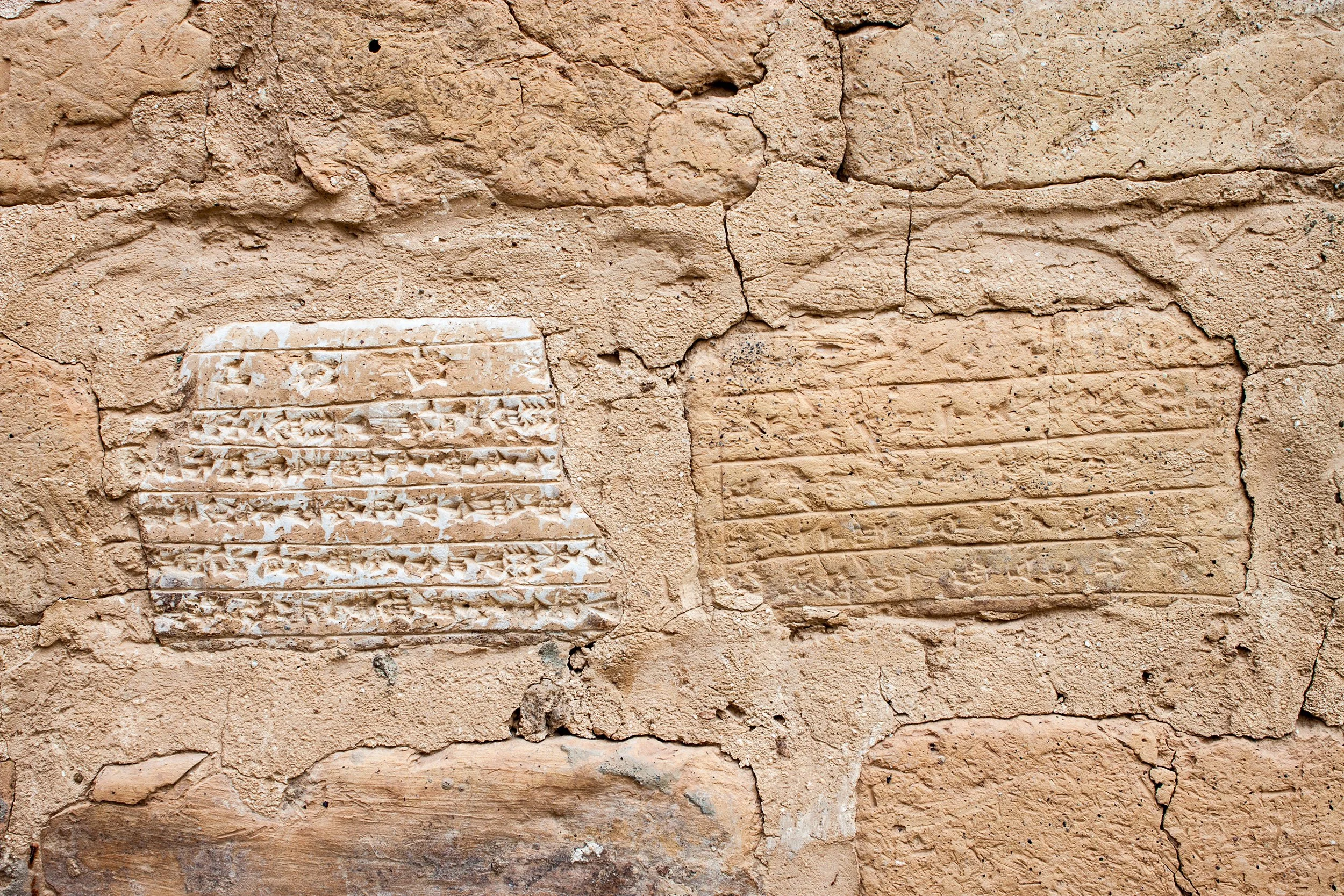
A longer image caption that has a short description, caption details 12345
-
Image Caption, caption details 12345